
この記事はこんな人におすすめ
✔ AIエージェントをローカルPCではなくサーバーで常時稼働させたい人
✔ 技術的な知識はあるけどDockerやVPSはまだ触ったことがない人
✔ Discordをインターフェースにして、自分専用AIエージェントを動かしたい人
話題の自律型AIエージェントをご存じですか?
私は自分専用のAIアシスタントとして、Hermes AgentをVPSサーバーに常駐させています。
Hermes AgentはNousResearchが開発したオープンソースのAIエージェントで、「質問して答えをもらう」だけのAIとは一線を画します。自分で考えて・判断して・行動する、まさに自律型のAIです。
Discordをインターフェースにしていて、24時間稼働しているHermes Agentに、Discordからプロンプトを送って処理を進めてもらっています。
この記事では、ConoHa VPSとDockerを使ったHermes Agentのセットアップ手順を、つまずきやすいポイントも含めてまとめています。
同じ環境を再現したい方はぜひ参考にしてみてください。
HermesAgentとは?─ まず知っておきたい基本
HermesAgentは、NousResearchが開発したオープンソースのAIエージェント。
ChatGPTやGeminiなどの生成AIのように「質問して答えをもらう」だけでなく、自分で考えて・判断して・行動することができます。
Discord以外にも、SlackやTelegramなどをインターフェースとして使いながら、Web検索・URLの分析・ファイル操作など様々なツールを自律的に呼び出して仕事をこなしてくれるAIです。
この特性から、自律型AIエージェントにカテゴライズされています。
ローカルPC or VPS ― 自律型AIの置き場所に適しているのは?
なぜローカル環境ではないのか
なぜHermes Agentの常駐先としてVPSサーバーを選んだのか?
どうしてローカルPCではだめなのか?
という、私なりの理由についてです。
自分専用AIエージェントを稼動したいと考えた時、最初に候補として挙がるのが「PCをつけっぱなしにする」方法。
でも、これにはすこし問題があります。
・ 再起動のたびにエージェントが止まる
・ 電気代とマシンへの負荷が積み重なる
・ PCを使いながら同時稼働させると不安定になりやすい
・ 普段使いのPCにエージェントの実行権限を渡すことになり、誤操作や意図しない動作のリスクが高まる
なぜVPSサーバーなのか
複数の役割を持って忙しい日々を過ごす中で、PCの前に座れる時間は限られています。
だからこそ必要だったのは、私がPCの前で指示をし続けなくても、寝ている間も動き続けてくれる独立した環境です。
そう考えると、レンタルサーバーは管理者権限がなく自由にソフトをインストールできない。
パブリッククラウドはコストが青天井になるリスクがある。
その両方の良いとこ取りができるのがVPSでした。
選んだのは VPS+Docker という構成
VPSとして選択したのはConoHa VPS。
国内サービスなので日本語サポートが充実しており、初期費用が低く、時間単位の課金にも対応しています。
以前他社で驚くほど安価なサービスを利用していた時はトラブルが絶えなかったので、安心できる大手を選ぶことにしました。
コストより安定性。実績のあるサービスに任せる方が、長い目で見てコスパがいいと私は考えています。
ConoHa VPSにはオフィシャルの「スタートアップスクリプト」という機能があり、よく使われるアプリケーションをサーバー起動時に自動でセットアップしてくれます。
WordPressやNode.jsはもちろん、AIエージェント系のツールにも対応していて、今回導入したHermes AgentやOpenClawなどの環境構築のハードルをぐっと下げてくれます。
ただこの方法だと、アプリケーションがVPSに直接インストールされる形。
私はこの1台のVPS上で複数のツールを並行して動かしたかったので、Docker(コンテナ)という仕組みの上でAIエージェントを動かすことにしました。
Dockerを使う理由は「環境を丸ごとコード化できる」から。
設定ファイル(yamlファイル)さえあれば、どの環境でも同じ状態を再現できますし、将来クライアントに提案する際の知見にもなる。一石二鳥の選択です。
セットアップ手順
環境情報
インフラ:ConoHa VPS
OS:Ubuntu
ミドルウェア:Docker (インストール済)
連携:Discord


事前に用意したもの
・ ConoHa VPSのアカウントとサーバー起動(SSH鍵の生成・秘密鍵の保存まで)
・ Dockerがインストール済みの環境
・ 利用したいモデルのAPIキー(GeminiやClaudeなど)
・ Discordアカウント+サーバー(インターフェースとして使用)
APIキーの取得先
セットアップウィザード内でAPIキーの入力を求められるので、あらかじめ取得しておくことをおすすめします。
どのモデルを使うかまだ決まっていない場合は、無料枠のあるGoogle AI Studioがおすすめです。
- Google AI Studio(Gemini) → aistudio.google.com からAPIキーを発行
- Anthropic(Claude) → console.anthropic.com からAPIキーを発行
ステップ1 – VPSにSSHでアクセス
VPSサーバーにSSHでアクセスします。
管理画面(コンソール)からもアクセスできますが、私は操作性の高いPuttyを使っています。
VPS作成時にSSH鍵を生成し、秘密鍵をダウンロードして手元に保存しておく必要があります。
SSH Keyを登録する|ConoHa VPSサポート
SSH接続でVPSにログインする|ConoHa VPSサポート

ステップ2 – VPSの初期セットアップ
ログイン後、まずパッケージを最新状態に更新します。
理由はふたつあります。
1. セキュリティのため
VPSは立ち上げた直後から外部からアクセスできる状態になっています。
古いパッケージには脆弱性が含まれていることがあるので、まず最初にパッチを当てておきます。
2. 後続の作業を安定させるため
この後DockerやHermes Agentを入れていきますが、パッケージが古い状態だとインストール時に依存関係でエラーが出ることがあります。
最初に揃えておくことでトラブルを防げます。
以下のコマンドでアップデートします。
sudo apt update && sudo apt upgrade -y更新後は再起動しておきます。
sudo rebootステップ3 – Dockerの状況を確認
ConoHa VPSにはDockerがプリインストールされている場合があります。
まず確認してみます。
docker --versionインストールされていない場合は以下で導入します。
curl -fsSL https://get.docker.com | shステップ4 – ユーザー作成とグループ設定
VPSにアクセスした直後は、すべての操作が許可された管理者権限(rootユーザー)で動いています。
rootは強力な反面、誤操作や不正アクセス時のリスクも大きいので注意が必要。
ここではHermesAgent専用のユーザー(hermes_user)を作成し、Dockerコマンドを実行できるようdockerグループに追加します。
ユーザーを作成し、グループに所属させます。
adduser hermes_user
usermod -aG docker hermes_user
作成後、hermes_userユーザーに切り替え(スイッチ)します。
su - hermes_userステップ5 – データ保存用のディレクトリ作成
HermesAgentの専用ディレクトリを作成します。
設定・メモリ・セッションはすべてこのディレクトリに保存されます。
コンテナを削除・更新してもデータは消えません。
先程作成した hermes_user のホームディレクトリ直下に、.hermes ディレクトリを作成します。
.(ドット)から始まる隠しフォルダです。
mkdir -p ~/.hermesステップ6 – Hermes Agentのイメージで初期設定を実行
以下のコマンドでSetupウィザードを起動します。
以下は初回のみ実行するコマンドです。
docker run -it --rm --shm-size=1g -v ~/.hermes:/opt/data nousresearch/hermes-agent setupSetupウィザードが起動したら設定をすすめます。
クイックセットアップを選びました。
┌─────────────────────────────────────────────────────────┐
│             ⚕ Hermes Agent Setup Wizard                │
├─────────────────────────────────────────────────────────┤
│  Let's configure your Hermes Agent installation.       │
│  Press Ctrl+C at any time to exit.                     │
└─────────────────────────────────────────────────────────┘
How would you like to set up Hermes?
  ↑↓ navigate  ENTER/SPACE select  ESC cancel

 → (●) Quick setup — provider, model & messaging (recommended)
   (○) Full setup — configure everything
起動時のモデルにはGeminiを指定。
┌─────────────────────────────────────────────────────────┐
│             ⚕ Hermes Agent Setup Wizard                │
├─────────────────────────────────────────────────────────┤
│  Let's configure your Hermes Agent installation.       │
│  Press Ctrl+C at any time to exit.                     │
└─────────────────────────────────────────────────────────┘

    Skipped (keeping current)


◆ Inference Provider
  Choose how to connect to your main chat model.
     Guide: https://hermes-agent.nousresearch.com/docs/integrations/providers


  Current model:    gemini-2.5-flash
  Active provider:  Google AI Studio
Select provider:
  ↑↓ navigate  ENTER/SPACE select  ESC cancel

   (○) Nous Portal (Nous Research subscription)
   (○) OpenRouter (100+ models, pay-per-use)
   (○) LM Studio (local desktop app with built-in model server)
   (○) Vercel AI Gateway (200+ models, $5 free credit, no markup)
   (○) Anthropic (Claude models — API key or Claude Code)
   (○) OpenAI Codex
   (○) Xiaomi MiMo (MiMo-V2.5 and V2 models — pro, omni, flash)
   (○) Tencent TokenHub (Hy3 Preview — direct API via tokenhub.tencentmaas.com)
   (○) NVIDIA NIM (Nemotron models — build.nvidia.com or local NIM)
   (○) Qwen OAuth (reuses local Qwen CLI login)
   (○) GitHub Copilot (uses GITHUB_TOKEN or gh auth token)
   (○) GitHub Copilot ACP (spawns `copilot --acp --stdio`)
   (○) Hugging Face Inference Providers (20+ open models)
 → (●) Google AI Studio (Gemini models — native Gemini API)  ← currently active
   (○) Google Gemini via OAuth + Code Assist (free tier supported; no API key needed)
   (○) DeepSeek (DeepSeek-V3, R1, coder — direct API)
   (○) xAI (Grok models — direct API)
   (○) Z.AI / GLM (Zhipu AI direct API)
   (○) Kimi Coding Plan (api.kimi.com) & Moonshot API
   (○) Kimi / Moonshot China (Moonshot CN direct API)
   (○) StepFun Step Plan (agent/coding models via Step Plan API)
   (○) MiniMax (global direct API)
   (○) MiniMax via OAuth browser login (Coding Plan, minimax.io)
   (○) MiniMax China (domestic direct API)
   (○) Alibaba Cloud / DashScope Coding (Qwen + multi-provider)
   (○) Ollama Cloud (cloud-hosted open models — ollama.com)
   (○) Arcee AI (Trinity models — direct API)
   (○) GMI Cloud (multi-model direct API)
   (○) Kilo Code (Kilo Gateway API)
   (○) OpenCode Zen (35+ curated models, pay-as-you-go)
   (○) OpenCode Go (open models, $10/month subscription)
   (○) AWS Bedrock (Claude, Nova, Llama, DeepSeek — IAM or API key)
   (○) Azure Foundry (OpenAI-style or Anthropic-style endpoint — your Azure AI deployment)
   (○) Custom endpoint (enter URL manually)
   (○) Configure auxiliary models...
   (○) Leave unchanged
ここまで選択した内容の確認が表示されます。
┌─────────────────────────────────────────────────────────┐
│             ⚕ Hermes Agent Setup Wizard                │
├─────────────────────────────────────────────────────────┤
│  Let's configure your Hermes Agent installation.       │
│  Press Ctrl+C at any time to exit.                     │
└─────────────────────────────────────────────────────────┘

    Skipped (keeping current)


◆ Inference Provider
  Choose how to connect to your main chat model.
     Guide: https://hermes-agent.nousresearch.com/docs/integrations/providers


  Current model:    gemini-2.5-flash
  Active provider:  Google AI Studio


  Google AI Studio API key: GeminiのAPIキー.... ✓

  Checking Gemini API tier...
  Tier check: paid ✓

Base URL [https://generativelanguage.googleapis.com/v1beta]:
デフォルトモデルを選択します。
┌─────────────────────────────────────────────────────────┐
│             ⚕ Hermes Agent Setup Wizard                │
├─────────────────────────────────────────────────────────┤
│  Let's configure your Hermes Agent installation.       │
│  Press Ctrl+C at any time to exit.                     │
└─────────────────────────────────────────────────────────┘

    Skipped (keeping current)


◆ Inference Provider
  Choose how to connect to your main chat model.
     Guide: https://hermes-agent.nousresearch.com/docs/integrations/providers


  Current model:    gemini-2.5-flash
  Active provider:  Google AI Studio


  Google AI Studio API key: GeminiのAPIキー... ✓

  Checking Gemini API tier...
  Tier check: paid ✓

Base URL [https://generativelanguage.googleapis.com/v1beta]:
  Found 9 model(s) from models.dev registry
Select default model:
->   gemini-2.5-flash  ← currently in use  <--- 通常使いにこれを選択
     gemini-flash-lite-latest
     gemini-3.1-flash-lite-preview
     gemini-3.1-pro-preview
     gemini-3-flash-preview
     gemini-3-pro-preview
     gemini-2.5-pro
     gemini-flash-latest
     gemini-2.5-flash-lite
     Enter custom model name
     Skip (keep current)
外部連携(Discordなど)の連携設定を今やるか・後でやるかの選択です。
Discordを使いたかったので、Set Upを選択して進めます。
Connect a messaging platform? (Telegram, Discord, etc.)
  ↑↓ navigate  ENTER/SPACE select  ESC cancel

 → (●) Set up messaging now (recommended)
   (○) Skip — set up later with 'hermes setup gateway'
アプリとして何を使うかを選択します。
Discordを選択します。
  Select platforms to configure:
  Toggle by number, Enter to confirm.

  [ ]  1. 📱 Telegram  (not configured)
  [ ]  2. 💬 Discord  (not configured)
  [ ]  3. 💼 Slack  (not configured)
  [ ]  4. 🔐 Matrix  (not configured)
  [ ]  5. 💬 Mattermost  (not configured)
  [ ]  6. 📲 WhatsApp  (not configured)
  [ ]  7. 📡 Signal  (not configured)
  [ ]  8. 📧 Email  (not configured)
  [ ]  9. 📱 SMS (Twilio)  (not configured)
  [ ] 10. 💬 DingTalk  (not configured)
  [ ] 11. 🪽 Feishu / Lark  (not configured)
  [ ] 12. 💬 WeCom (Enterprise WeChat)  (not configured)
  [ ] 13. 💬 WeCom Callback (Self-Built App)  (not configured)
  [ ] 14. 💬 Weixin / WeChat  (not configured)
  [ ] 15. 💬 BlueBubbles (iMessage)  (not configured)
  [ ] 16. 🐧 QQ Bot  (not configured)
  [ ] 17. 💎 Yuanbao  (not configured)
  [ ] 18. 💬 IRC  (not configured)
  [ ] 19. 💼 Microsoft Teams  (not configured)

Toggle # (or Enter to confirm): 2   <--- Discordを選択
表示内容に間違いなければEnterします。
  [ ]  1. 📱 Telegram  (not configured)
  [✓]  2. 💬 Discord  (not configured)
  [ ]  3. 💼 Slack  (not configured)
  [ ]  4. 🔐 Matrix  (not configured)
  [ ]  5. 💬 Mattermost  (not configured)
  [ ]  6. 📲 WhatsApp  (not configured)
  [ ]  7. 📡 Signal  (not configured)
  [ ]  8. 📧 Email  (not configured)
  [ ]  9. 📱 SMS (Twilio)  (not configured)
  [ ] 10. 💬 DingTalk  (not configured)
  [ ] 11. 🪽 Feishu / Lark  (not configured)
  [ ] 12. 💬 WeCom (Enterprise WeChat)  (not configured)
  [ ] 13. 💬 WeCom Callback (Self-Built App)  (not configured)
  [ ] 14. 💬 Weixin / WeChat  (not configured)
  [ ] 15. 💬 BlueBubbles (iMessage)  (not configured)
  [ ] 16. 🐧 QQ Bot  (not configured)
  [ ] 17. 💎 Yuanbao  (not configured)
  [ ] 18. 💬 IRC  (not configured)
  [ ] 19. 💼 Microsoft Teams  (not configured)

  Toggle # (or Enter to confirm):   <--- OKだったらそのままEnter
Discordの接続情報を登録します。
◆ Discord
  Create a bot at https://discord.com/developers/applications
Discord bot token:DiscordのAPIキー  <--- 開発者画面から入手
✓ Discord token saved
セットアップ完了画面が表示されたら、初期設定は終了です。
┌─────────────────────────────────────────────────────────┐
│              ✓ Setup Complete!                          │
└─────────────────────────────────────────────────────────┘

📁 All your files are in ~/./:

   Settings:  /opt/data/config.yaml
   API Keys:  /opt/data/.env
   Data:      /opt/data/cron/, sessions/, logs/

────────────────────────────────────────────────────────────

📝 To edit your configuration:

   hermes setup          Re-run the full wizard
   hermes setup model    Change model/provider
   hermes setup terminal Change terminal backend
   hermes setup gateway  Configure messaging
   hermes setup tools    Configure tool providers

   hermes config         View current settings
   hermes config edit    Open config in your editor
   hermes config set <key> <value>
                          Set a specific value

   Or edit the files directly:
   nano /opt/data/config.yaml
   nano /opt/data/.env

────────────────────────────────────────────────────────────

🚀 Ready to go!

   hermes              Start chatting
   hermes gateway      Start messaging gateway
   hermes doctor       Check for issues


Launch hermes chat now? [Y/n]:n  <--- チャットは開始せずに一度閉じる
ステップ7 – Hermes Agentの動作確認
あらためてHermes Agentを起動。
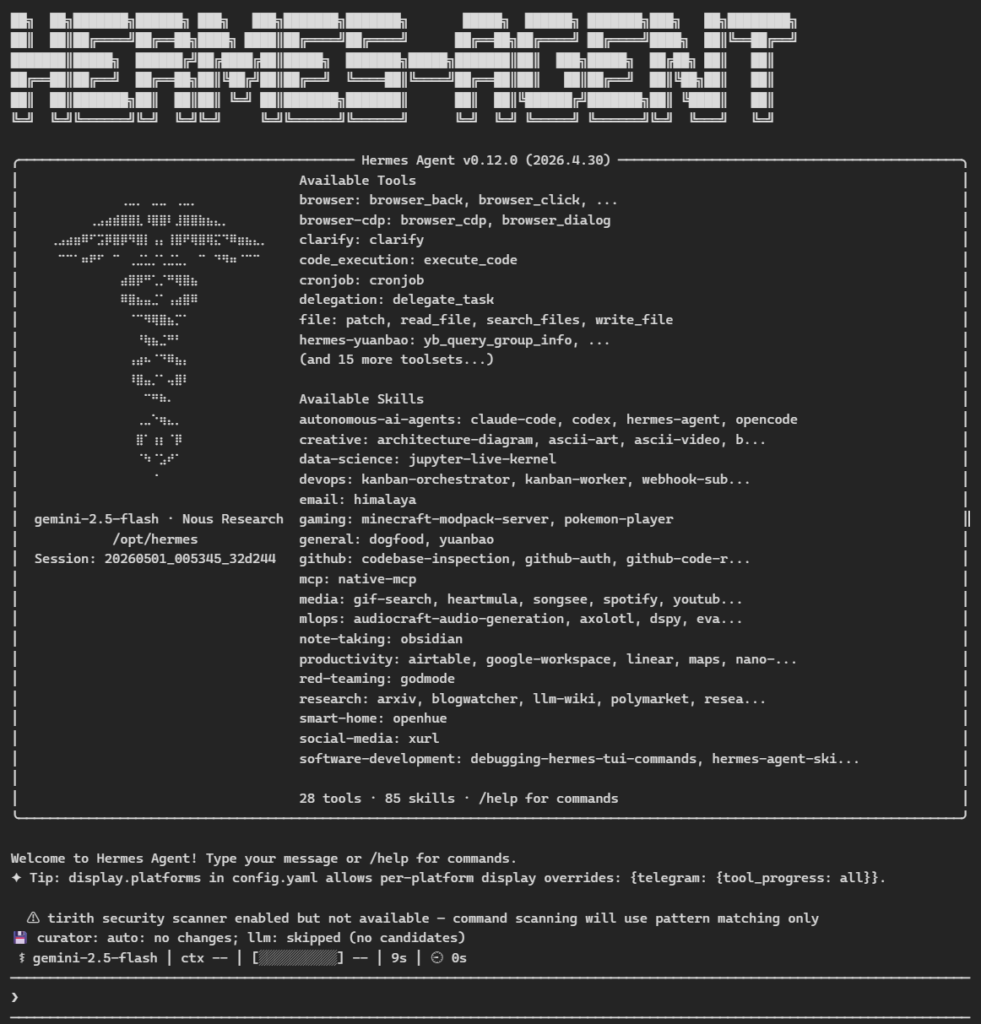
docker run -it --rm --shm-size=1g -v ~/.hermes:/opt/data nousresearch/hermes-agentスムーズに起動!
あのwelcome画面が表示されました!!🥹
まとめ
この記事では、ConoHa VPS × Docker環境にHermes Agentを導入し、起動確認するまでの手順をまとめました。
Dockerを使ったことで、環境をコードで管理できる構成が完成しました。
Setupウィザード上でGemini APIキーの登録とDiscordの選択まで完了し、あとはGatewayを動かすだけの状態です。
次回はいよいよDiscordと接続して、実際にBotとして動かすところまでを解説します。
VPS構築からエージェント活用まで、AIインフラを育てるシリーズとして連載しています。
ご興味のある方はフォローしていただけると、続きの通知が届きます。